
Is it actually possible to connect a home theater system with a computer – your PC? The simple answer is YES, you can do that; however, you need a good HDMI cable for the connection.
Electronic devices are becoming more flexible and versatile – can be easily paired with other devices – thanks to technological innovations.
Looking for a means how to connect home theater to PC using HDMI? Your TV has a play a role here, and you should follow this guide.
Today, we’d discuss how you can connect home theaters to computers using HDMI cables. This guide/tutorial is concise and straightforward.
Basically, if you’re you’re not connecting your laptop to the home theater directly, your TV (HDTV) would play an important role here.
How To Connect Home Theater To PC Using HDMI
To make this guide look clearer and easier to understand, we arrange the processes into steps.
First Step:
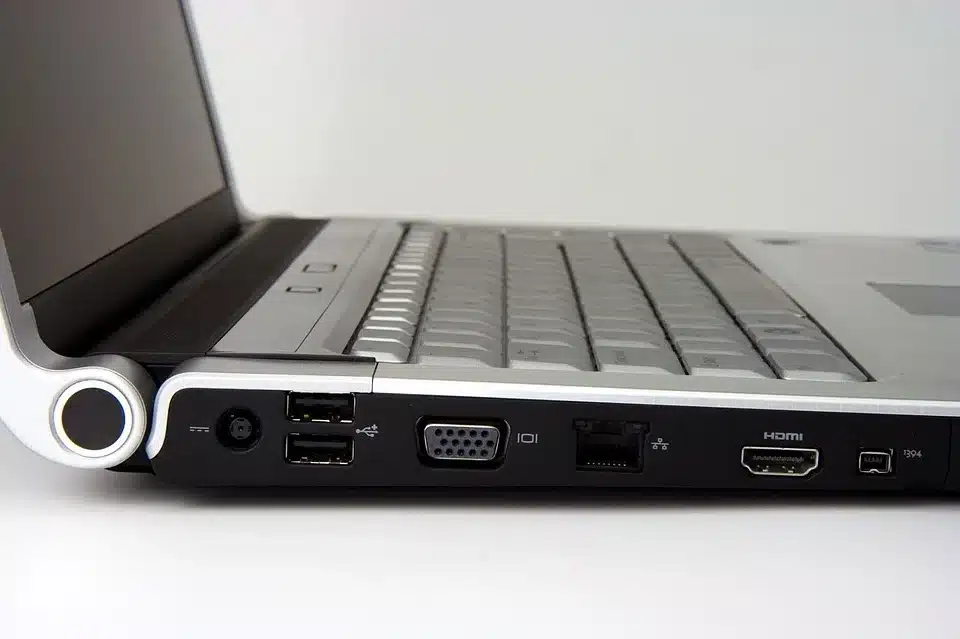
Firstly, you need to connect your PC or laptop to a Receiver system. The receiver system also needs to be connected to an HDTV via HDMI.
Once this prerequisite connection is made, you will need to change the receiver’s input totally with the input your PC is connected to (for example, AUX, Video 1, Video2, etc…).
Second Step:
Now, right-click on your PC – like you want to refresh the desktop – and select “AMD Catalyst Control Center” or “NVidia Control Panel,” any of which you see, click on it.
However, some people may not see either of these context menu options; in such a case, choose “Screen Resolution.”
Third Step:
Going forward, you will need to adjust your PC’s display settings, and this varies depending on the option you selected above.
For example, if you selected “NVidia Control Panel,” you’d find an option that reads “Set Up Multiple Displays” – it’s available under the “Display” hierarchy.
Now, click on this option and you’d see all the displays connected to your laptop or desktop computer. You will need to enable a “secondary screen,” which is your “TV” or your “Receiver.” Set up a second display and click on “Apply,” then you can continue below.
But wait, what about people that selected “AMD Catalyst Control Center?” The process is quite similar. You should also enable a second display, and this is available under Desktop Management >>> Creating and Arranging Desktops.


Lastly, for people who didn’t see any of those options and selected “Screen Resolution,” here’s what to do. Go to the secondary display, and get into the Multiple Displays dropdown menu. Now, select Duplicate Desktop (Clone) or Extend Desktop to display.
Fourth Step:
You’re making great progress already, if you followed the third step above, your laptop screen should be showing on your TV, then it’s time to talk about the home theater connection, which isn’t really going to be stressful.
Fifth Step:
In order to get sounds from your laptop to play through your home theater or the connected AV equipment via HDMI, you need to tweak certain audio settings on your PC. Now, here’s how to do that:
- Right-click on the speaker icon on your PC’s taskbar – towards the right-end side
- Select Playback Devices from the context menu options that would appear
- Here, you’d see different connected speaker/audio devices; apparently, you’d see “Digital Audio,” which is the HDMI.
- Choose the HDMI option as your Default Device
- Now, audio sent through your PC would play through your Home Theater device.
What Was The Essence Of Your TV In The Connection?
Definitely, you may be inquisitive to know why you had to connect your PC to your TV for the connection to work; like, why can’t you just hook up the home theater and your PC at a go?
Well, you can’t connect home theater and PC directly, you have to introduce your TV to act as your PC’s monitor. When your TV is now your PC monitor and your home theater is connected to the TV, your sounds would play from the home theater.
That’s the essence of introducing your TV to the setup. Basically, if what you’ve got is standard PC speakers, which are “powered,” you don’t need any connections in-between; you just need to connect the speaker directly to your PC and start playing sound.
More so, if there is no home theater system connected to your TV, sounds from your PC would playback from the TV speakers.
Key Takeaways
HDMI transmits both audio and video signals with the help of ARC technology. So, your PC would transmit sounds to your connected TV, which further transfers the sound to the connected sound system, in this case, your home theater.
This setup is mostly for gamers; however, anyone can also go for it if they need to playback sounds from their PCs through their home theater – probably because they want to hear a clearer, cleaner sound from their movies or games.
It is important to note that all HDMI cables can work for this purpose – provided the cable ends can get into your PC’s HDMI port, and also into your TV’s HDMI port. If you have a more complex setup – let’s say a 7.1 audio system – it’d be a bit stressful to connect such to your PC.
Notwithstanding, there are high-end, PC speakers that can deliver 5.1 surround sound quality, and you don’t need any complex setup to get them to work – most of them are plug n play devices.
Most importantly, the guide above also applies if you’re using a Receiver for your Home Theater; so, you’d need to connect your PC to the receiver via HDMI.
The Best Home Threater
We have listed below home theater that will work very well on PC
- Acoustic Audio AA5172 700W Bluetooth Home Theater
- Harman Kardon HKTS 16BQ 5.1 Channel Home Theater Speaker
- Klipsch Synergy Black Label F-200 Floorstanding Speaker
- Sony HT-S350 Soundbar with Wireless Subwoofer
The Best HDMI ARC And Optical Cables To Buy
These cables are all available on Amazon, eBay, and other popular e-commerce stores that operate online. Nevertheless, you could still buy them from local stores around you.
1. IVANKY HDMI Cable
The IVANKY HDMI cable is pretty fast and compatible with HDMI ARC. It is built to last and can be used on all devices, including projectors, monitors, TVs, DVD players, and even PCs.
More interestingly, this HDMI cable transmits data at a very fast speed, up to 18 Gbps. It is one of the best you would find out there, and it can transmit lossless 7.1 surround sound and 4K videos.
This cable is available in different lengths, from 1ft to 50ft.
2. iBirdie 4K HDMI Cable
Merely looking at this cable, you would clearly see the rigidity. The iBirdie 4K HDMI cable is one of the best out there with a decent transfer speed rating.
It can transfer 8GB every second and is fit for use with TVs, gaming console, PCs, and every other place where an HDMI cable is required.
Furthermore, this cable is inexpensive, available in different sizes, and built to deliver the best performance you’d expect from an HDMI cable of such quality.
Summary
If you own a MacBook, that’s an entirely different thing, but it all points down to connect your MacBook to the receiver or TV, and then connect your home theater to the TV or receiver.
Modern TVs are becoming more sophisticated than ever – integrating many smart features, along with lots of computer-like functions. There are many connections you can make through your HDTV or smart TV.
However, we hope that this tutorial really answered the question that brought you to our blog today. Have a great day ahead.